Shortcodes
Created:
Updated:
Author:
Introduction
Shortcodes let you embed dynamic content in Markdown files. In this post, you will learn how to use the shortcodes provided by this theme.
Shortcodes
Images
The image shortcode can be used to embed images in your Markdown files. This can be useful for adding visual elements to your posts. Here is an example of how to use the image shortcode:

{{ image(src="example-image.jpg", alt="Example image show a cityscape at dusk with modern buildings, a river, and a prominent tower. The sky is painted with hues of pink and blue, reflecting on the water. The scene is calm and picturesque, capturing the essence of a serene urban evening.") }}The src parameter specifies the image filename (resolved relative to the page context), and the alt parameter specifies the alt text for the image.
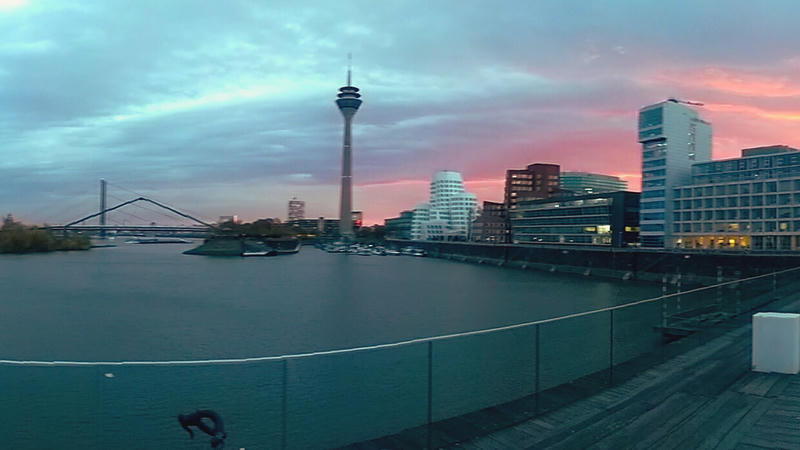
{{ image(src="example-image.jpg", alt="Example image show a cityscape at dusk with modern buildings, a river, and a prominent tower. The sky is painted with hues of pink and blue, reflecting on the water. The scene is calm and picturesque, capturing the essence of a serene urban evening.", width=800, height=450) }}The width and height parameters can be used to specify the size of the image. The width and height parameters are optional and can be omitted if you want to use the original size of the image.
Details
The details shortcode can be used to create a collapsible section in your Markdown files. This can be useful for hiding additional information or content that is not essential to the main text. Here is an example of how to use the details shortcode:
Click to expand
This is the content that will be hidden by default. You can click on the summary above to expand or collapse this section.
{{ details(title="Click to expand", summary="This is a summary" content=`This is the content that will be hidden by default. You can click on the summary above to expand or collapse this section.`) }}Markdown
The markdown shortcode can render code examples and their output in the same post. Here is an example that renders an HTML form and its source.
Source
<form>
    <input type="number" step="1" />
    <input type="submit" />
  </form>
  <p>Input value: <span></span></p>
  <script>
    document.querySelector("form").addEventListener("submit", (e) => {
      e.preventDefault();
      document.querySelector("span").innerText = e.target.querySelector("input").value;
    });
</script>{{/\* markdown(title="input attr type is number and attr step is 1" type="html", code='
<form>
<input type="number" step="1" />
<input type="submit" />
</form>
<p>Input value: <span></span></p>
<script>
document.querySelector("form").addEventListener("submit", (e) => {
e.preventDefault();
document.querySelector("span").innerText = e.target.querySelector("input").value;
});
</script>
') */}}Icons
The icon shortcode can be used to embed icons in your Markdown files. This can be useful for adding visual elements to your posts. Here is an example of how to use the icon shortcode:
{{ icon(name="activity",size=32) }}The size of the icon can be adjusted by adding the size parameter to the shortcode. The default size is 32 pixels, but you can specify a different size. The parameter is optional and can be omitted if you want to use the default size.
All available icon names can be found on the icon page.
Youtube
The youtube shortcode can be used to embed YouTube videos in your Markdown files. This can be useful for including video content in your posts. Here is an example of how to use the youtube shortcode:
{{ youtube(id="Pb4Naef8pc8", title="loop") }}Spotify
The spotify shortcode can be used to embed Spotify playlists in your Markdown files. This can be useful for including music playlists in your posts. Here is an example of how to use the spotify shortcode:
{{ spotify(id="6rqhFgbbKwnb9MLmUQDhG6", title="album") }}The email shortcode renders an obfuscated mail link and reuses the same logic as the feedback component.
The local_part, domain_name, and tld parameters are required. Only title is optional.
Example:
<hello@example.org>{{ email(local_part="hello", domain_name="example", tld="org", title="Reveal email address") }}Without an explicit title, the shortcode uses post_feedback_email_link_title from translations.
The rendered output keeps the address obfuscated in source and reveals it through the existing JavaScript behavior.
Phone
The phone shortcode renders an obfuscated phone link. The number parameter is required. The title parameter is optional.
Example:
+1-800-555-0199{{ phone(number="+1-800-555-0199", title="Call me") }}The rendered output keeps the phone number obfuscated in source and reveals it through the existing JavaScript behavior.
H-Card
The h-card shortcode renders a microformat2 h-card for representing people and organizations. All parameters are optional, but at least one must be provided.
Note: URLs, emails, and phone numbers are now passed as arrays of arrays to support multiple values.
Examples:
Simple h-card with multiple URLs:
{{ hcard(
  name="Simon",
  nickname="exiguus",
  urls=[["https://exiguus.blog", "exiguus blog"],["https://github.com/exiguus", "GitHub"],["https://github.com/exiguus/zola-monoplain", "Zola Monoplain theme"]]
) }}
Full h-card with multiple phone numbers and emails:
.489539995b3e76e9.webp "Photo of Sally Ride")
{{ hcard(
  name="Sally Ride",
  honorific_prefix="Dr.",
  given_name="Sally",
  additional_name="K.",
  family_name="Ride",
  honorific_suffix="Ph.D.",
  nickname="sallykride",
  org="Sally Ride Science",
  photo="Sally_Ride_(1984).jpg",
  urls=[
    ["http://sally.example.com", "Sally Ride Science website"]
  ],
  emails=[
    ["sally", "example", "com"]
  ],
  tels=[
    ["+1-800-555-0100", "Work phone"],
    ["+1-800-555-0101", "Mobile phone"]
  ],
  street_address="123 Main st.",
  locality="Los Angeles",
  region="CA",
  region_title="California",
  postal_code="91316",
  country_name="U.S.A",
  bday="1951-05-26",
  category="physicist",
  note="First American woman in space."
) }}
The shortcode supports all h-card microformat properties including name components, contact information, address, and more. Email addresses and phone numbers are obfuscated to prevent spam.
Array Format:
urls: Array of arrays, each with[url, url_text](url_text is optional and defaults to name)emails: Array of arrays, each with[local_part, domain_name, tld, title](title is optional)tels: Array of arrays, each with[number, title](title is optional)
H-Entry
The theme automatically renders microformat2 h-entry markup for posts using the hentry macro. While there is no dedicated shortcode, h-entry is used internally in the post header template with page metadata (title, authors, published date, etc.).
For custom h-entry usage, the macro supports these parameters:
name: Post titlesummary: Post summarycontent: Post content HTMLpublished: Publication datetimeupdated: Update datetimeurl: Permalink URLuid: Unique identifierauthors: Array of author names (strings)categories: Array of category names (strings)syndication: Array of syndication URLs (strings)
Feedback
Have thoughts or experiences you'd like to share? I'd love to hear from you! Whether you agree, disagree, or have a different perspective, your feedback is always welcome. Drop me an email and let's start a conversation.